
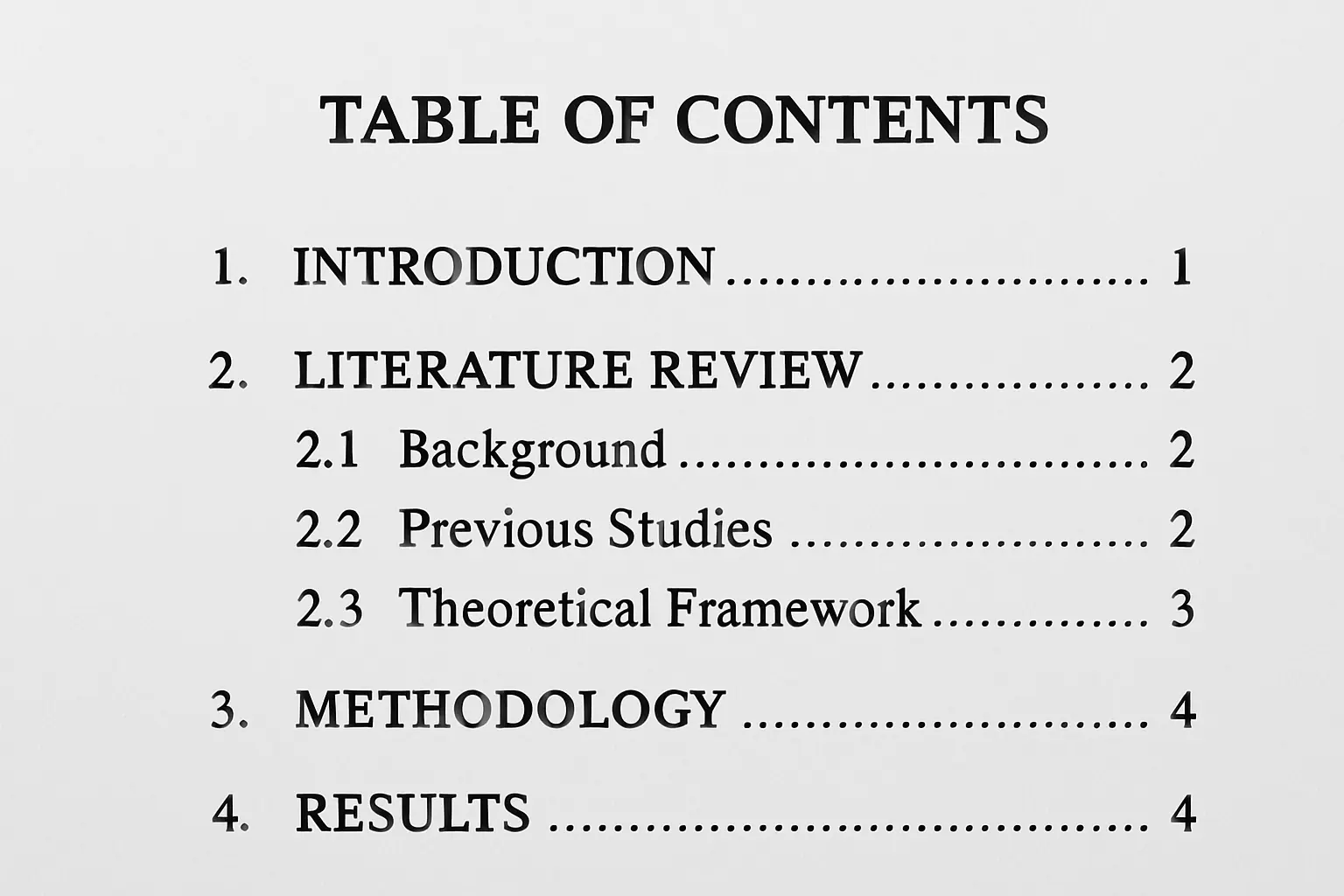
How to Create a Thesis Table of Contents Step by Step (2026)
A thesis table of contents should never be typed and formatted by hand — it should be generated automatically from heading styles, so that every time you add a section or the page numbers shift, the table updates itself in seconds instead of requiring a manual rewrite. This guide covers how to create a thesis table of contents step by step in Word, Google Docs, and LaTeX, including the page-numbering conventions examiners actually check.
Manually typed tables of contents are one of the most common last-minute submission errors. A student adds a paragraph to Chapter 3 the night before the deadline, every page number after it shifts by one, and the table of contents — typed by hand weeks earlier — is now wrong throughout. An auto-generated table of contents eliminates this risk entirely, because it pulls directly from your document’s heading structure.
Step 1: How Do You Check Your Institution’s Formatting Requirements?
Before touching heading styles, open your department’s thesis formatting guide or graduate school handbook. Requirements that vary by institution include: how many heading levels must appear in the table of contents (some require only chapter titles, others go three levels deep), whether appendices are listed, and the exact wording required for section titles like “References” vs “Bibliography” vs “Works Cited.” Building the table correctly the first time saves a full reformat later.
Step 2: How Do You Apply Heading Styles Consistently?
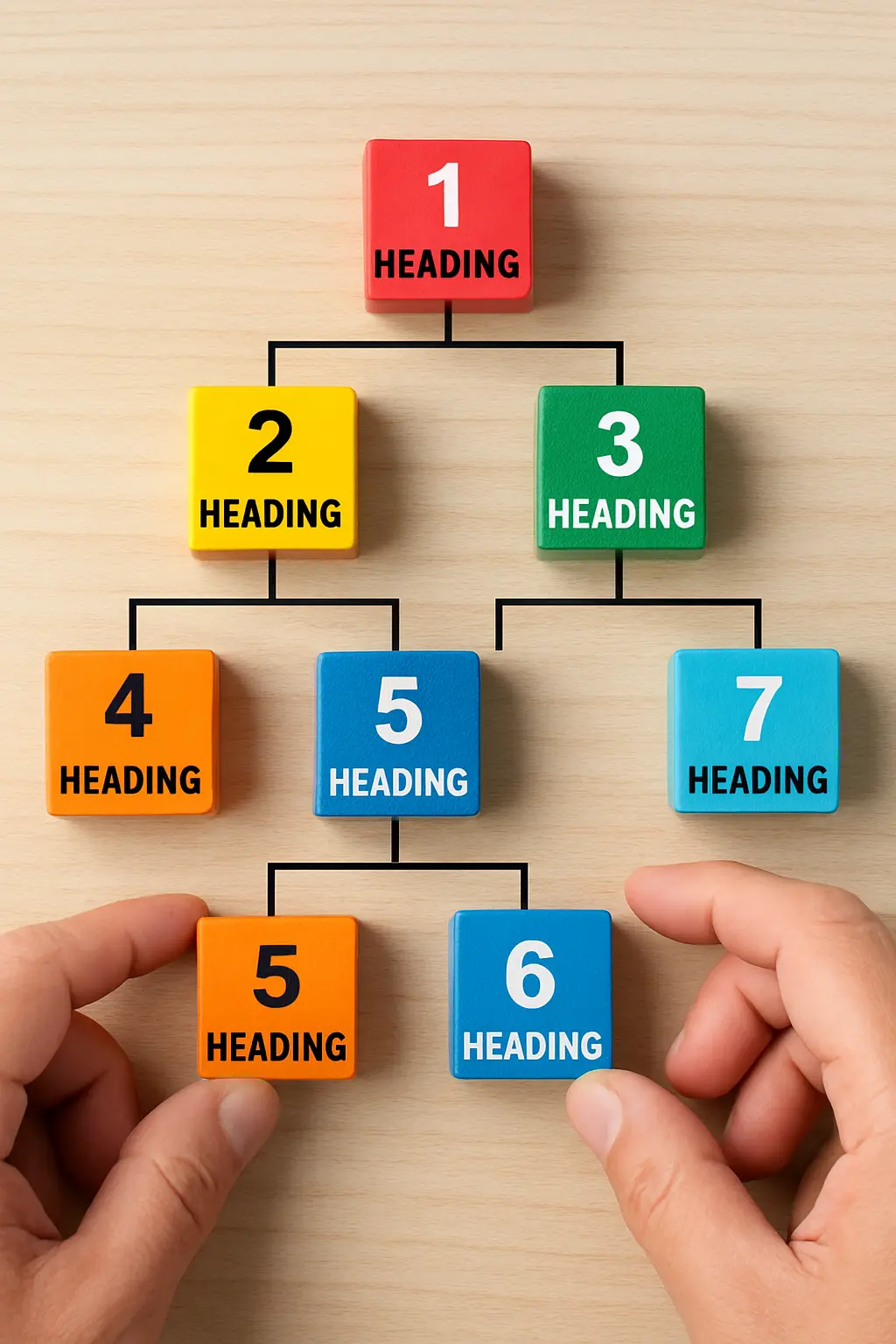
This is the step that makes everything else automatic. In Word, select each chapter title and apply the Heading 1 style from the Home tab’s Styles gallery; apply Heading 2 to major sections within a chapter, and Heading 3 to subsections. Do not simply bold and enlarge text to make it look like a heading — Word’s table of contents tool only reads text tagged with an actual heading style, not text that is merely formatted to resemble one.
Go through your entire document chapter by chapter and confirm every title uses a heading style, and only chapter/section titles use them — accidentally applying Heading 2 to a random bolded sentence will insert that sentence into your table of contents.
Step 3: How Do You Insert an Automatic Table of Contents in Word?
Place your cursor where you want the table to appear (typically its own page after the abstract), then go to References > Table of Contents and choose an automatic style. Word pulls every heading-styled title and its current page number directly from your document. Whenever you add content, delete a section, or move a chapter, right-click anywhere inside the table and choose Update Field, then select “Update entire table” to refresh both titles and page numbers.
Step 4: How Do You Do the Same in Google Docs?
Apply Google Docs’ built-in heading styles via Format > Paragraph styles > Heading 1/2/3, the same principle as Word. Then place your cursor where the table should appear and go to Insert > Table of contents, choosing either the plain-text style (with page numbers) or the blue-link style (useful for a digital-only submission). Google Docs updates the table automatically as you type, though you may occasionally need to click the refresh icon that appears when you click into the table.
Step 5: How Do You Set Up Front-Matter vs Body Page Numbering?
Most universities require two separate page-numbering sequences: lowercase Roman numerals (i, ii, iii, iv) for front matter — title page, abstract, acknowledgements, and the table of contents itself — restarting at Arabic numeral 1 on the first page of your introduction or Chapter 1. To do this in Word, insert a section break (Next Page) at the end of your front matter, then unlink the header/footer between sections (“Link to Previous” toggle) before applying different number formats to each section. Always verify this specific rule against your own institution’s formatting guide, since a minority of programmes use Arabic numbers throughout, including the front matter.
Step 6: How Do You Add a List of Figures and List of Tables?
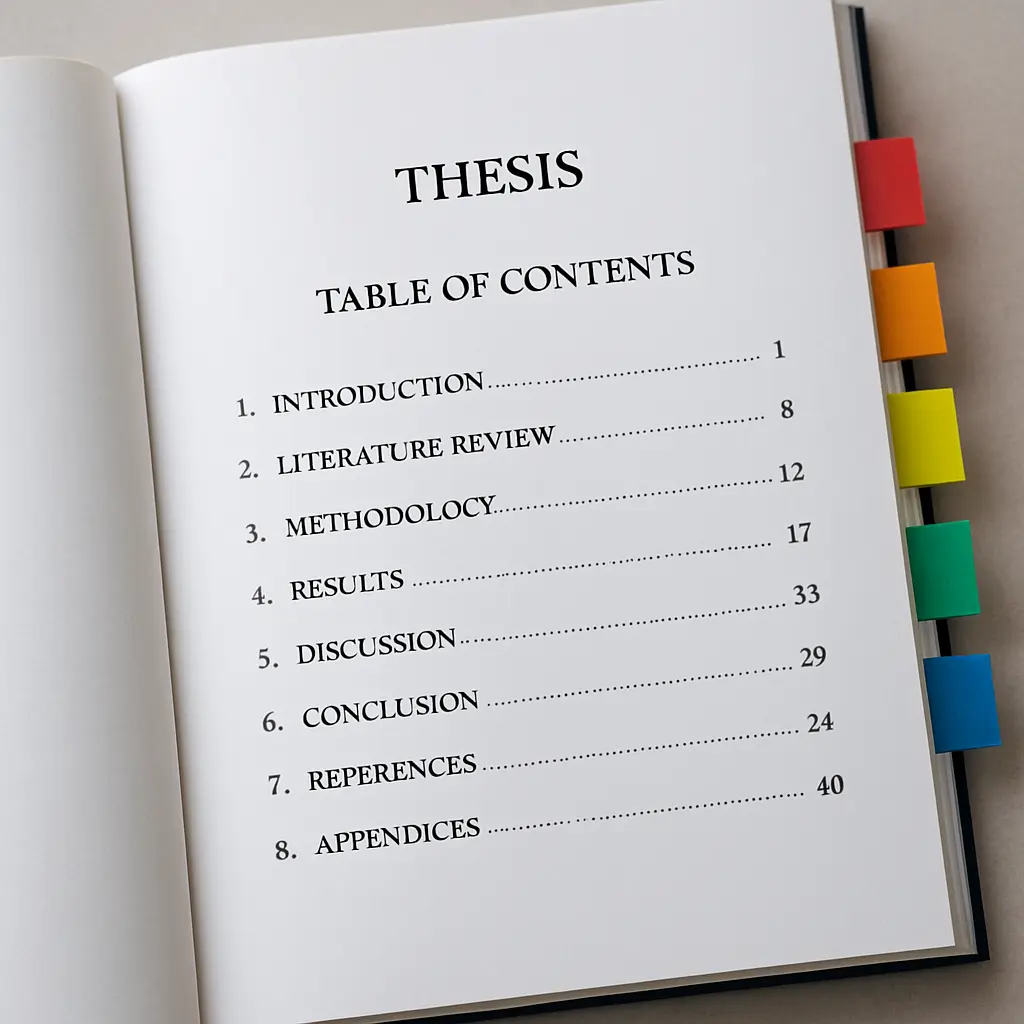
If your thesis contains several figures or tables, most formatting guides require a separate List of Figures and List of Tables immediately after the table of contents. To generate these automatically in Word, apply captions to every figure and table using References > Insert Caption, then insert the lists via References > Insert Table of Figures, choosing “Figure” or “Table” as the caption label for each respective list. As with the main table of contents, these lists update automatically once captions are applied correctly.
Step 7: How Do You Build a Table of Contents in LaTeX?
LaTeX generates a table of contents almost entirely automatically once your document structure uses proper sectioning commands. Add tableofcontents where you want the table to appear, and structure your chapters and sections using chapter{}, section{}, and subsection{} commands rather than manually formatted headings. You typically need to compile the document twice for the page numbers to resolve correctly, since LaTeX writes the heading/page data to an auxiliary .toc file on the first pass and reads it back on the second. For lists of figures and tables, add listoffigures and listoftables the same way.
Step 8: How Do You Do a Final Accuracy Check Before Submission?
Right before you submit, run through this checklist:
- Update the entire table of contents field one final time, after all edits are complete.
- Confirm every chapter title in the table exactly matches the wording in the body of the document — a heading edited in the body but not refreshed in the table is a common error.
- Spot-check five or six page numbers in the printed or PDF version against the actual page — auto-generated tables are reliable, but exported PDFs can occasionally shift pagination.
- Confirm your front-matter and body numbering sequences transition correctly at the start of Chapter 1.
- Check whether appendices need their own entries, per your institution’s requirements from Step 1.
Getting the table of contents right is part of the broader formatting pass most students do in the final week — our guide on how to format a thesis in Microsoft Word step by step covers styles, captions, and page numbering in more depth, and if you’re still shaping the front matter itself, see how to write an appendix for a thesis or dissertation for what belongs after your table of contents versus at the very end. If you still need to finish your reference list, our step-by-step guide on how to reference a website in APA format covers the author, date, and no-author edge cases in detail.
FAQ
How do I make a table of contents update automatically in Word?
Apply Word’s built-in Heading 1, Heading 2, and Heading 3 styles to every chapter and section title, then insert the table of contents from References > Table of Contents. Once headings are styled correctly, right-click the table and select Update Field any time you add or move content.
Should thesis page numbers be Roman numerals or Arabic numerals?
Most universities require lowercase Roman numerals (i, ii, iii) for front matter such as the title page, abstract, and table of contents itself, switching to Arabic numerals (1, 2, 3) starting from the first page of the introduction or Chapter 1. Always check your specific institution’s formatting guide, since a minority use Arabic numbers throughout.
Does the table of contents page itself get a page number listed in the table of contents?
No. The table of contents lists the page numbers where each chapter and section begins, but it does not list its own page number as an entry within itself.
Can Google Docs generate an automatic table of contents like Word?
Yes. Apply Google Docs’ built-in heading styles (Format > Paragraph styles) to your section titles, then insert a table of contents from Insert > Table of contents. It updates automatically as you edit, similar to Word, though its formatting options are more limited.
Do I need a separate list of figures and list of tables?
Most universities require a separate list of figures and list of tables immediately after the table of contents if your thesis contains five or more of either. Check your institution’s formatting guidelines, since some only require these lists above a certain figure or table count.
Focus on Your Writing, Not Your Formatting
Tesify exports your thesis to PDF, Word, or LaTeX with consistent heading structure and formatting built in, and Tesify Auto Bibliography keeps your reference list accurate as you write.
Write your thesis with AI
Structure, draft, cite, and format your thesis faster with Tesify’s AI writing tools, automatic bibliography, and plagiarism checker. Free to start, no credit card required.





Leave a Reply