
How to Set Up a Zotero Group Library Step by Step (2026)
Managing a shared reference list by emailing .bib files or pasting citations into a shared document is one of the most reliable ways to introduce errors into a co-authored thesis or research paper. Zotero’s group library feature solves this entirely: one shared, live collection that every team member sees in their own Zotero desktop app, synced in real time. This guide walks you through how to set up a Zotero group library from scratch — choosing the right group type, configuring permissions, inviting co-authors, syncing PDFs, and organising collections — so your whole team is working from the same source of truth.
Why use a Zotero group library?
Individual Zotero libraries are private — only you can see them. A group library is a shared workspace that multiple Zotero accounts can read, annotate, and add to simultaneously. For research teams, this means:
- No duplicate searches: When one team member finds a source and saves it to the group library, everyone else sees it immediately.
- Consistent citation metadata: Everyone cites from the same Zotero record, eliminating format drift between co-authors.
- Shared PDFs: In a private group, full-text PDFs sync to every member’s machine — no more “can you forward that paper?” emails.
- Supervisor access: Your supervisor can be added as a group admin, giving them live visibility of your source list throughout the project.
If you are comparing tools before committing, the article Best Reference Management Tools for Thesis Writers in 2026: Zotero vs Mendeley vs EndNote Compared covers the competitive landscape — but if your team has already settled on Zotero, read on.
Understanding group types and permissions
Before creating a group, choose the right type. Zotero offers three, and the choice affects both visibility and file-sharing capability. Getting this wrong after creation is costly: you cannot switch a public group to private after the fact and retroactively enable file storage.
| Group type | Who can see it? | Who can join? | PDF sharing? | Best for |
|---|---|---|---|---|
| Public, Open Membership | Anyone | Anyone instantly | No | Open reading lists, shared bibliographies for a course |
| Public, Closed Membership | Anyone | By invitation only | No | Public-facing lab bibliography, department reading list |
| Private | Members only | By invitation only | Yes | Co-authored theses, research teams, supervisor review |
Recommendation for thesis teams: choose Private. Co-authored dissertations and research projects almost always need PDF access, and privacy protects unpublished work from public indexing.
Step 1: Create or log in to your Zotero account
Every group member needs a free Zotero account at zotero.org/user/register. The desktop app and the web account are separate: the account is what enables syncing between the two.
- Go to zotero.org → Log In (top right) or Register for a Free Account.
- Enter a username, email, and password. Verify your email when prompted.
- Download and install the Zotero desktop app (Windows, macOS, or Linux) if you have not already.
- In the desktop app, go to Edit → Preferences → Sync (Windows/Linux) or Zotero → Settings → Sync (macOS), enter your credentials, and click Set Up Syncing.
Each co-author must complete this step with their own account before you can invite them in Step 4.
Step 2: Create the group on zotero.org
Groups are created and managed from the Zotero website, not the desktop app. Only the group owner can create it.
- Log in to zotero.org and click Groups in the top navigation bar.
- Click the Create a New Group button.
- Enter a group name (e.g., “Smith & Jones Thesis 2026” or your project title). Choose something recognisable — this name appears in every member’s Zotero left pane.
- Select your group type: Private for most thesis teams (see the table above).
- Click Create Group. You are now the group owner and admin.
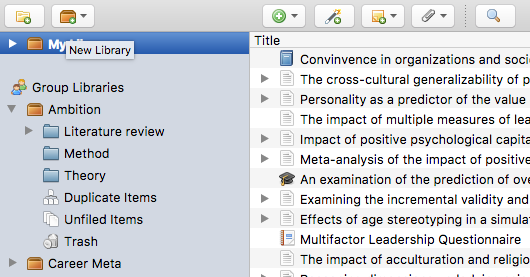
Alternatively, from inside the Zotero desktop app: go to File → New Library → New Group…. This opens the group creation page in your default browser, completing the same flow.
Video: Zotero: Setting up shared group libraries — Georgia State University Library
Step 3: Configure group settings and permissions
After creating the group, you land on the group’s settings page. Work through each section carefully before inviting members.
Library settings
- Library Reading: Choose Any group member (recommended) or Anyone on the internet (only appropriate for public groups sharing read-only bibliographies).
- Library Editing: Choose Any group member if everyone will add and edit references, or Only group admins if you want a curated list that only designated people can modify.
- File Editing: For private groups, this should match Library Editing. Set to Any group member so all researchers can attach and read PDFs.
Group profile (optional but useful)
You can add a short description and website URL to the group profile. For a research project, noting the project name, institution, and expected end date helps members identify the correct group if they are part of several.
Click Save Settings before moving on.
Step 4: Invite co-authors and team members
- On the group’s settings page, click Manage Members.
- Click Send More Invitations.
- Enter each invitee’s email address (the one linked to their Zotero account) or their Zotero username. Separate multiple addresses with commas.
- Click Invite Members. Each person receives an email with an acceptance link.
- Back on the Members page, pending invitations are listed. You can cancel any outstanding invitation here if an address was entered incorrectly.
Once an invitee accepts, their role defaults to Member. You can promote any member to Admin from the Members list — useful for giving a supervisor or a co-lead the same management rights as you.
Step 5: Sync the group library to the desktop app
After a member accepts the invitation, the group library does not always appear instantly in the desktop app. Force a sync:
- Open the Zotero desktop app.
- Click the sync icon (circular arrows) in the top-right toolbar, or press Ctrl+Shift+S (Windows) / Cmd+Shift+S (macOS).
- The group library appears in the left pane under Group Libraries, directly below My Library.
If the group library still does not appear after syncing, check that data syncing is enabled: Settings → Sync → Data Syncing → Sync automatically should be ticked, and your credentials should be saved.
Step 6: Organise collections within the group library
Collections in Zotero are equivalent to folders — but a reference can belong to multiple collections without being duplicated. Within the group library, any member with editing rights can create and manage collections.
- In the left pane, right-click on your group library name.
- Select New Collection…
- Name it after a thesis chapter, research strand, or theme (e.g., “Chapter 2 — Methodology”, “Systematic Review Corpus”, “Background Reading”).
- Drag references from the main group view into the collection, or save new items directly into it using the Zotero browser connector.
You can also create subcollections by right-clicking an existing collection and choosing New Subcollection… — useful for large systematic reviews. For a guide to running systematic searches, see Systematic Literature Review: A Step-by-Step Guide for Dissertation Students (2026).
A practical collection structure for a thesis team might look like:
- Chapter 1 — Introduction
- Chapter 2 — Literature Review
- Theoretical frameworks
- Empirical studies
- Chapter 3 — Methodology
- Excluded items (for papers screened out in a systematic review)
Step 7: Share PDFs and attachments
In a private group with file editing enabled, PDFs attached to references sync to all members automatically — subject to the group owner’s storage quota.
- Add a reference to the group library (via the browser connector, DOI lookup, or manual entry).
- Right-click the reference and select Find Available PDF. Zotero will locate and attach the PDF if it is openly available or if your institution’s library proxy is configured.
- Alternatively, drag a PDF directly onto the reference to attach it manually.
- Sync again. Within a few minutes, every group member will see the PDF attachment under that reference in their own desktop app.
Members can also add their own PDF annotations (highlights and notes) without affecting other members’ copies — annotations are personal and do not sync to the group.
Managing member roles and leaving a group
Zotero groups have three role levels, each with different rights:
| Role | Add/edit references | Invite members | Change settings | Delete group |
|---|---|---|---|---|
| Owner | Yes | Yes | Yes | Yes |
| Admin | Yes | Yes | Yes | No |
| Member | Yes (if library editing = any member) | No | No | No |
To change a member’s role, go to the group’s Manage Members page on zotero.org and use the role dropdown next to their name. To remove a member, click Remove Member. The removed member’s desktop app will remove the group library on next sync — but any items they added remain in the group.
To leave a group yourself, go to zotero.org → Groups → your group → Leave Group. As owner, you cannot leave — you must first transfer ownership to another member or delete the group.
Storage quotas and group file limits
Group file storage counts against the group owner’s Zotero storage quota, not the quota of individual members. This is a common source of confusion in research teams.
- Every Zotero account includes 300 MB of free storage (shared across personal and group libraries).
- Paid plans start at USD 20/year for 2 GB, rising to USD 120/year for unlimited storage (verified at zotero.org/storage).
- Reference metadata (titles, authors, abstracts, DOIs) syncs freely and does not count toward storage — only file attachments (PDFs, images) do.
- Members can store PDFs locally without syncing them to the group (right-click → Store File Locally) to reduce the owner’s storage use.
For a two-person thesis team sharing a moderate number of PDFs, 2 GB is typically sufficient. A large systematic review team accumulating hundreds of full-text PDFs may need the unlimited tier.
The broader picture of academic reference tools — including how Zotero compares to Mendeley and Paperpile on storage and collaboration — is covered in Best Reference Management Tools for Students Compared 2026. For a consolidated view of free academic tools across all workflow stages, see 30 Free Research Tools for PhD Students in 2026.
Frequently asked questions
Can I have more than one Zotero group library?
Yes. You can create as many group libraries as you need, and belong to any number of groups created by others. Each appears as a separate library in the left pane of the Zotero desktop app under Group Libraries. There is no limit on the number of groups, only on storage.
Do all group members need a paid Zotero account?
No. Only the group owner needs storage for file attachments — and only if the group stores PDFs. All other members can use free accounts. Reference metadata (titles, authors, abstracts) syncs to all members at no cost, regardless of account tier.
Can I share a Zotero group library with someone outside my university?
Yes. Zotero group membership is tied to individual Zotero accounts, not institutional accounts. Anyone with a free Zotero account — at any institution or none — can be invited to a private group. This makes it straightforward to collaborate with external supervisors, international co-authors, or industry partners.
What happens to the group library if the owner deletes their account?
If the group owner deletes their Zotero account without first transferring ownership, the group library is deleted along with it. Before closing an account, transfer ownership to an active member: go to Manage Members on zotero.org, change the owner’s role to member or admin, and promote another member to owner.
Can I cite references from a Zotero group library in Word or Google Docs?
Yes. The Zotero Word plugin and the Google Docs connector can access items in any group library you are a member of. When inserting a citation, use the search bar in the citation dialogue to find items from the group library the same way you would from your personal library. For correct Harvard formatting, see Harvard Referencing Guide 2026: Rules, Examples and Common Mistakes.
Can two people edit the same Zotero reference simultaneously?
Zotero does not have real-time simultaneous editing like Google Docs. If two members edit the same record at the same time and both sync, Zotero will attempt to merge the changes, but conflicts can produce duplicate records. The practical workaround is to assign distinct collections to different team members, so each person primarily works on their own section.
Can I make a Zotero group library bibliography public?
Yes — if you use a Public, Open Membership or Public, Closed Membership group, the library’s reference list is viewable by anyone at zotero.org/groups/[groupID]/items. You can also export any Zotero group collection as a formatted bibliography (right-click → Create Bibliography from Collection…) and share it as a Word document or HTML file.
How many members can a Zotero group have?
According to the Zotero groups documentation, there is no published cap on group membership. Research lab groups with dozens of members are common. Practical performance is not meaningfully affected until libraries contain tens of thousands of items.
Can I use the Zotero browser connector to save items directly into a group library?
Yes. When you click the Zotero connector icon in your browser to save a webpage or article, a small window appears where you can choose the destination library — either your personal library or any group library you belong to. Select the group library (and the collection within it) before clicking Save.
What is the difference between a Zotero group library and a shared collection?
A group library is an entirely separate library shared among multiple accounts. A collection is an organisational folder inside a library (personal or group). Collections cannot be shared on their own — sharing happens at the library level. If you want to share just a subset of your references with one collaborator, the correct approach is to create a new group library and add only the relevant items to it.
Managing your bibliography is only one piece of the thesis puzzle
Your Zotero group library keeps your team’s references organised and consistent — but drafting, structuring, and formatting the thesis itself is a separate challenge. Tesify is an AI thesis assistant built for English-language dissertation writers. It helps you structure chapters, generate correctly formatted citations from your reference list, and maintain a consistent academic voice across a long document. Start your thesis with Tesify →
Write your thesis with AI
Structure, draft, cite, and format your thesis faster with Tesify’s AI writing tools, automatic bibliography, and plagiarism checker. Free to start, no credit card required.




Leave a Reply