
Google Scholar Advanced Search: Expert Techniques for Researchers in 2026
Most researchers use Google Scholar the same way they use Google: type a few keywords, scroll the first page, click the most cited result. Google Scholar advanced search offers far more than this — a set of operators, filters, and features that can transform a noisy keyword search into a precise, reproducible literature search in minutes. For dissertation students, systematic reviewers, and academic researchers, mastering these tools is not a minor efficiency gain — it is the difference between finding the relevant literature and missing it.
This 2026 guide covers every advanced search feature in Google Scholar: the operator syntax, the Advanced Search panel, date filtering, cited-by tracking, author search, journal search, alert setup, and the Metrics and My Profile features. Each technique is explained with a practical example you can use in your next literature search.
Essential Search Operators
Google Scholar supports a subset of the search operators available in full-text database platforms. Understanding these is the first step to precision searching.
| Operator | Function | Example |
|---|---|---|
| “phrase” | Exact phrase search | “academic integrity” |
| -term | Exclude a term | plagiarism -software |
| AND | Both terms must appear (default behaviour) | motivation AND achievement |
| OR | Either term | students OR undergraduates |
| author: | Search by author | author:Creswell |
| intitle: | Term must appear in title | intitle:”literature review” |
| source: | Limit to a specific journal | source:”Nature” |
Combining Operators
The real power comes from combining operators. For example, to find recent papers on formative assessment in higher education excluding K-12 research, published in a specific journal:
"formative assessment" "higher education" -"secondary school" -"K-12" source:"Assessment and Evaluation in Higher Education"
Google Scholar does not support full Boolean nesting with parentheses the way that EBSCO or Web of Science do. For complex searches requiring nested logic, pair your Google Scholar search with a dedicated database.
The Advanced Search Panel
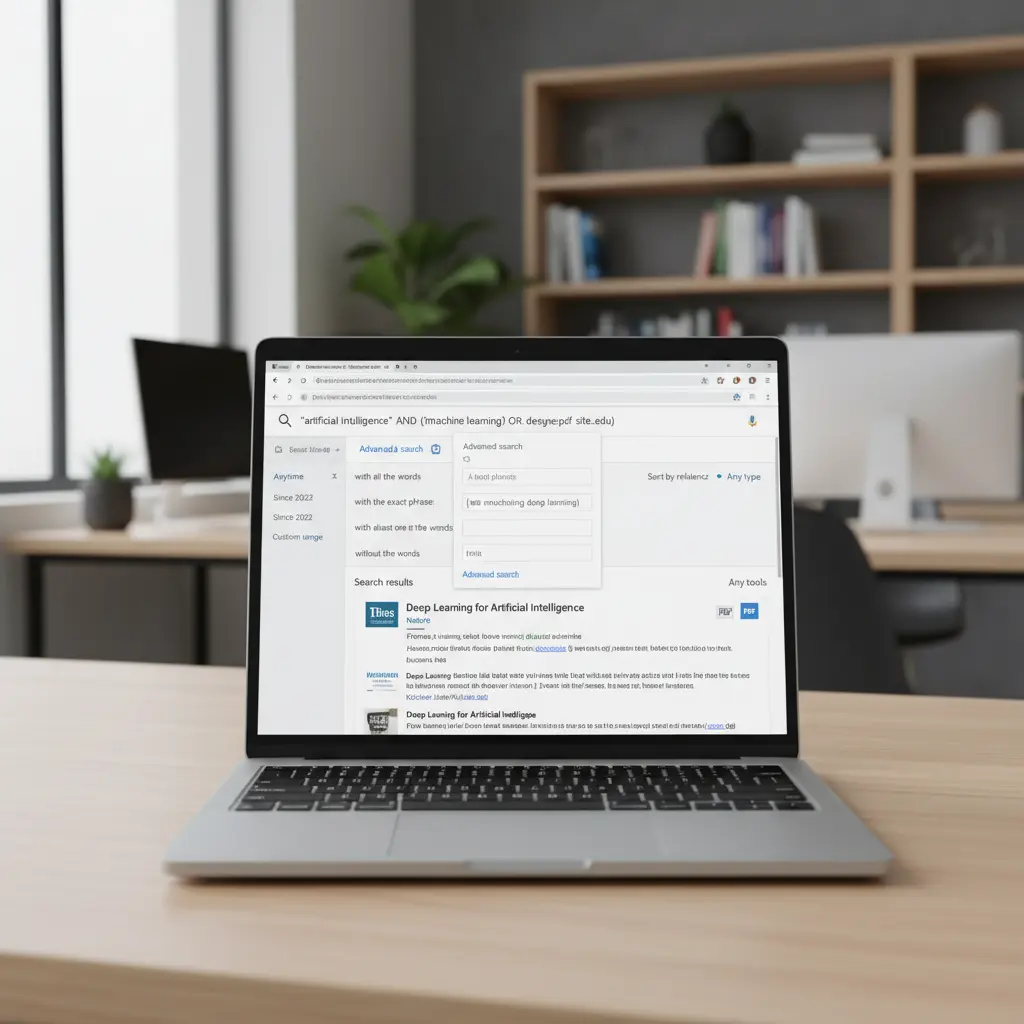
Click the menu icon (top left) in Google Scholar and select “Advanced search” to access the structured search panel. This interface allows you to build searches using form fields rather than operator syntax — useful if you prefer a guided approach or are teaching others to search.
The Advanced Search panel offers:
- Find articles with all of the words: Equivalent to AND between all terms.
- Find articles with the exact phrase: Equivalent to quotation marks.
- Find articles with at least one of the words: Equivalent to OR.
- Without the words: Equivalent to the minus operator.
- Where my words occur: Anywhere in the article, or only in the title.
- Return articles authored by: Author field search.
- Return articles published in: Journal/conference filter.
- Return articles dated between: Publication year range.
Date Filtering and Recency
On the left sidebar of any results page, you can filter results by date using the “Since Year” options (Since 2020, Since 2021, Since 2022, Since 2023) or a custom range. For literature reviews, a common strategy is to run two searches: one unrestricted (to capture foundational works) and one limited to the past 5–10 years (to identify current evidence).
You can also sort results by “Sort by date” rather than relevance. Sorting by date is useful when you have already established the core literature and want to identify the most recent work on a narrow topic.
One important limitation: Google Scholar’s date metadata is sometimes inaccurate for older works that were recently digitised. If the publication date matters for your search (as it does in systematic reviews), verify dates against the original publisher’s record.
Using “Cited By” for Forward Citation Searching
The “Cited by X” link below each result is one of Google Scholar’s most powerful features for literature searching. It shows you all works that have cited that paper — allowing you to trace how a seminal study has been built upon, critiqued, and applied over time.
How to use it strategically:
- Find a foundational paper in your area (e.g., Bandura’s 1977 self-efficacy theory).
- Click “Cited by.” This shows all papers that have referenced it.
- Search within the citing works using the “Search within citing articles” box that appears — filter for your specific topic (“Cited by” AND “academic achievement”).
- Sort by date to find the most recent developments in the area.
This forward citation search is standard practice in systematic reviews and is essential for finding empirical applications of theoretical frameworks you are using.
Related Articles and Reference Mining
Every Google Scholar result includes a “Related articles” link. This uses Google’s similarity algorithm to suggest papers with overlapping content. It is less reliable than citation searching but can surface relevant papers that do not share your exact search terms.
Reference mining (backward citation searching) involves taking a relevant paper, opening it, and going through its reference list. For literature reviews, this is often more efficient than repeated database searches once you have found a well-cited review article in your area — its reference list is a curated source list built by experts in the field.
Searching by Author
To find all works by a specific author, use: author:"J Creswell". Note that Google Scholar does not distinguish between authors with the same name — an author search for author:"J Smith" will return all J. Smiths. This is where Google Scholar Author Profiles (scholar.google.com — accessible from any result page by clicking the author’s linked name) are valuable. An author profile aggregates verified publications for a specific researcher, shows their h-index and citation counts, and lists their co-authors.
If the author you are researching does not have a Google Scholar profile, combine the author: operator with their institutional affiliation in the search box: author:"T Williams" "University of Oxford".
Searching by Journal or Source
The source: operator limits results to a specific journal, conference, or book series. This is useful when you know a particular journal is the primary venue for your topic, or when you want to benchmark what has been published in a target journal before submitting your own work.
Example: "student engagement" source:"Higher Education" finds papers about student engagement published in the journal Higher Education.
The source filter is not perfect — Google Scholar sometimes indexes preprints, working papers, and other grey literature under journal names. Check each result to confirm it is from the intended publication.
Setting Up Alerts
Google Scholar Alerts send you email notifications when new papers matching your search query are indexed. This is invaluable for staying current with a fast-moving literature without repeated manual searches.
To set up an alert: run your search, then click the envelope icon in the left sidebar (“Create alert”). You can edit the alert at any time through your Google Scholar account. Alert emails include links to the new papers and can be set to send immediately or as a weekly digest.
Best practice: set alerts for your core keywords, for key authors in your field, and for your own name (to track citations of your published work).
The Cite Feature and Citation Export
Every Google Scholar result has a “Cite” link that generates formatted citations in MLA, APA, Chicago, Harvard, and Vancouver styles. This is useful for quick reference, but treat it as a starting point rather than a final citation — Google Scholar’s automatically generated citations frequently contain errors (missing volume numbers, wrong capitalization, incomplete author lists).
For systematic literature management, use the “Save” button (star icon) to add papers to your Google Scholar Library, then export them in BibTeX, EndNote, or RefMan format to your reference manager (Zotero, Mendeley, or Citavi). This is far more efficient than manual citation entry. For a comparison of reference management tools, see our dedicated reference management tools guide.
For citation formatting, our guides on APA citation format and Harvard referencing cover the rules you need to verify against.
My Library and Profile
Sign in with a Google account to access personalisation features. Google Scholar Library lets you save papers with tags (e.g., “Chapter 2 sources,” “Methods literature,” “To read”), which creates a searchable personal database of saved literature. You can search within your saved library and export selected papers to a reference manager.
Google Scholar Author Profiles allow researchers to claim their publications, track their citation counts and h-index, and set up citation alerts. If you are building a research career, establishing and maintaining a Google Scholar profile is good academic practice — alongside ORCID and institutional repository profiles.
Google Scholar’s Limitations
Google Scholar is broad but imprecise. Its key limitations for academic research:
- No subject filtering: Unlike EBSCO or Scopus, you cannot restrict results to specific subject categories.
- No controlled vocabulary: Subject databases use MeSH (PubMed) or Thesaurus terms to find all synonyms automatically; Google Scholar requires you to think of synonyms yourself.
- Grey literature inclusion: Google Scholar indexes theses, conference papers, preprints, and even some websites alongside peer-reviewed articles. Quality must be assessed individually.
- Incomplete coverage: Not all journals are indexed. Google Scholar’s coverage of non-English literature and social science journals outside the English-speaking world is uneven.
- No deduplication across databases: If you use Google Scholar alongside EBSCO or PubMed, you will need to manually deduplicate results.
For these reasons, systematic reviews require searching multiple databases, not Google Scholar alone. Use it as a starting point and a supplement, not as your sole source. Pair it with Tesify Write to organise and write up your literature efficiently.
Frequently Asked Questions
Is Google Scholar reliable for academic research?
Google Scholar is a valuable starting point but should not be used as the sole database for serious academic research. It has broad coverage (including grey literature), easy access, and powerful citation tracking. However, it lacks subject-specific filtering, controlled vocabulary, and complete coverage of all academic journals. For systematic reviews and comprehensive literature searches, always supplement it with at least two discipline-specific databases (e.g., PsycINFO, ERIC, PubMed, Scopus).
How do I access full-text articles found on Google Scholar?
Click the link to the right of the result (e.g., “[PDF] from institution.edu”). If you are affiliated with a university, logging in through your institution will give you access to the full text of many subscription articles. Google Scholar also shows links to freely available versions — preprints, institutional repositories, and open-access articles. If no free version is available, use your library’s interlibrary loan service or contact the author directly via ResearchGate or Academia.edu.
Can I use Google Scholar for a systematic literature review?
Google Scholar can be used as one of several databases in a systematic review, but it cannot be the only one. Most systematic review protocols (including PRISMA-compliant ones) require searching at least two or three subject-specific databases to ensure comprehensive coverage. Google Scholar is particularly useful for grey literature, citation tracking, and identifying sources missed by structured database searches.
How do I find review articles on Google Scholar?
Add “review” or “systematic review” or “meta-analysis” to your search terms: “student motivation” review. You can also use the intitle: operator: intitle:”systematic review” “formative assessment.” For finding only highly cited review articles, sort by relevance (rather than date) and look for papers with thousands of citations — these are often landmark reviews in the field.
How do I set up a Google Scholar Alert for a specific author?
Search for the author using the author: operator (e.g., author:”JW Creswell”), then click the envelope icon in the left sidebar to create an alert for that search. Alternatively, go directly to the author’s Google Scholar profile page and click “Follow” — this sends you notifications whenever new papers by that author are indexed, or when their existing papers receive new citations.
Build a Stronger Literature Search
Google Scholar advanced search, combined with the systematic strategies in our literature review methodology guide, gives you the tools to build a genuinely comprehensive and reproducible literature search. For managing the sources you find, see our reference management tools comparison. And when you are ready to write up your findings, Tesify Write supports every stage of the academic writing process.
Write your thesis with AI
Structure, draft, cite, and format your thesis faster with Tesify’s AI writing tools, automatic bibliography, and plagiarism checker. Free to start, no credit card required.






Leave a Reply